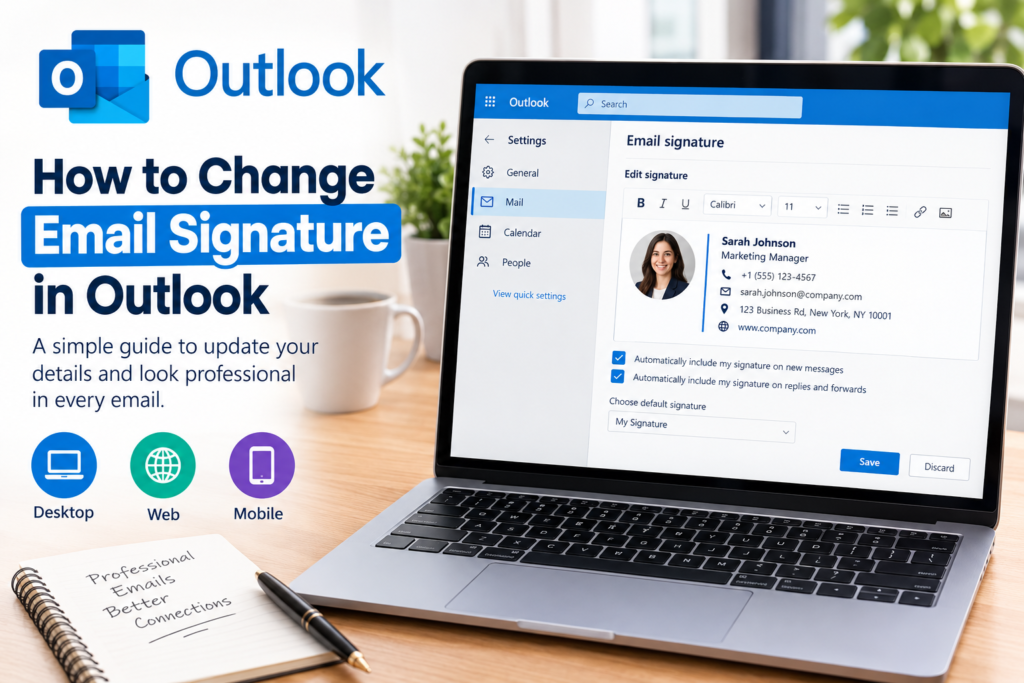

If you have ever wondered how to change email signature in Outlook, the process is easier than it may seem. Whether you use Outlook for work, school, business, or personal communication, a well-designed signature can make every email look more polished. Outlook lets you create, edit, and manage signatures, but the exact steps vary depending on whether you use the desktop application, web version, or mobile app.
Why Your Outlook Signature Matters
An email signature is more than a small block of text at the bottom of a message. It can provide essential contact information, identify your role, and give recipients a convenient way to know who sent the email. For professionals, a consistent signature can also make everyday communication feel more organized.
A useful signature usually contains your name, job title, company or organization, phone number, and other relevant information. However, it does not need to be complicated. In many cases, a clean combination of your name and contact details looks more professional than a large collection of images, quotations, and unnecessary information.
If your current signature includes an old job title, an outdated phone number, incorrect company information, or a design you no longer like, updating it is a practical way to keep your emails current.
How to Change Email Signature in Outlook on the Web
You can access the web version of Outlook through a browser, and its signature settings are in the main settings area. The interface can change over time, but the general process remains straightforward.
Open Outlook in your browser and sign in to your account. In Outlook, open the Settings menu and look for the mail settings. In the Mail section, find the option for composing messages and signatures.
The signature settings let you create a new signature or update an existing one. If you already have a signature, select it and make the changes you want. You can update the wording, contact information, formatting, and other available elements.
After editing the signature, check the options that control whether it should automatically appear on new messages and replies or forwarded emails. Save your changes before leaving the settings area.
The most important thing to remember is that changing the signature does not necessarily update signatures already inserted into an email draft. If you have an open draft, it can be worth checking the message before sending it.
How to Change Email Signature in Outlook Desktop
The desktop version of Outlook provides more traditional email-management controls, though the location of signature settings depends on the version and interface you use.
In the classic Outlook desktop application, open Outlook and go to the section where you can access its options. Look for Mail settings, then find the Signatures option. From there, you can select an existing signature and edit its contents.
If you have more than one signature, make sure you are editing the correct one. Outlook can maintain different signatures for different purposes, which can be useful if you regularly communicate in different professional or personal roles.
You can also choose which signature Outlook should automatically use for new messages and which one should appear when you reply to or forward an email. Once everything looks correct, save the changes and create a test message.
The newer Outlook experience may present its settings differently from classic Outlook. If you do not see the same menus, use the application’s settings area and search for signature. This is often the quickest way to locate the appropriate setting.
Editing Your Signature the Right Way
Knowing how to change an email signature in Outlook is only part of the process. The quality of the signature itself matters just as much.
Start by checking the basic information. Your name should be spelled correctly, your title should be current, and your contact information should be accurate. If you have recently changed departments, companies, phone numbers, or responsibilities, this is a good opportunity to update everything at once.
Keep the design simple. A readable font, sensible spacing, and clear hierarchy make a signature easier to understand. Too many colors, oversized logos, animated images, or long quotations can distract from the message.
For professional emails, consider whether every element genuinely helps the recipient. A signature should support communication, not compete with it.
Keep Contact Information Current
Outdated contact information can create unnecessary confusion. Before saving a new signature, review your phone number, email address, company name, position, website information, and other details you include.
If your organization provides a standard email signature format, follow that format rather than creating a completely different design. Consistency matters, especially when multiple people communicate on behalf of the same organization.
Changing the Signature for Replies and New Emails
One useful Outlook feature lets you control how signatures behave in different types of messages. You may want a full signature on new emails but a shorter version when replying to an existing conversation.
This distinction can help keep long email threads readable. A large signature repeated several times in a conversation can make the message unnecessarily lengthy.
When configuring the settings, review the choices for new messages and replies or forwards separately. If the wrong signature keeps appearing, this setting is one of the first places worth checking.
How to Change Email Signature in Outlook on Mobile
Outlook’s mobile application is designed differently from the desktop and web versions. If you regularly send email from your phone, check the signature configured in the mobile app rather than assuming it will behave exactly like your desktop account.
Open the Outlook mobile app and go to Settings. Look for the mail or signature option, where you can edit the text used for messages sent from the application.
Mobile signatures are often simpler because people usually compose shorter messages on smartphones. A basic name and contact details may be enough.
If you use Outlook on several devices, send a test email after changing your signature. This confirms which signature is actually applied to messages sent from each application.
Common Signature Problems
Sometimes users change a signature but still see the old version. This can happen for several reasons. The message may have been drafted before you changed the signature, or another Outlook application may have its own signature settings.
If an old signature continues appearing, create a completely new test email after saving your settings. Check whether the updated version appears automatically; if not, return to the signature settings and verify that the correct signature is assigned to new messages.
Another common issue is inconsistent formatting. Copying text from websites or word-processing applications can bring unwanted fonts, spacing, or formatting. When this happens, simplify the signature and reapply clean formatting for a better result.
Make Your Signature Look Professional
A professional signature should be easy to scan. Your name should stand out naturally, while your title and contact information should remain clear without overwhelming the reader.
Consider using a short structure such as your name followed by your professional role and essential contact information. If you include a company logo, make sure it is appropriately sized and does not make the signature unnecessarily large.
Think about how the signature looks on both a computer and a smartphone. A design that looks attractive on a large monitor may become difficult to read on a smaller screen.
It is also worth remembering that not every recipient will see your signature exactly as you do. Different email applications can handle formatting differently, so simpler designs generally have fewer compatibility problems.
When You Should Update Your Signature
Your email signature should be reviewed whenever your professional information changes. A new job title, company, department, telephone number, or business address can all be reasons to update it.
Even if nothing major has changed, reviewing your signature occasionally can help you remove information that is no longer useful. A signature created several years ago may include old social media accounts, outdated slogans, or unnecessary details.
For business users, reviewing signatures periodically can also help maintain a consistent communication style across different devices and accounts.
Frequently Asked Questions
Can I have more than one Outlook signature?
Yes. Outlook supports multiple signatures so that you can use different versions for different situations. This can be helpful when you need one signature for professional communication and another for more casual correspondence.
Why is my old signature still appearing?
An existing email draft may still contain the previous signature. Create a new message after saving your settings and check whether the updated version appears there. You should also check the signature assigned to new messages and replies.
Can I add a logo to my Outlook signature?
Depending on the Outlook version and available signature editor, you can add images such as a company logo. Keep the image appropriately sized and test the signature by sending an email to another account.
Does changing my Outlook signature change old emails?
No. Changing your signature generally affects future messages where the signature is automatically inserted. It does not rewrite signatures that were already included in previously sent emails.
Is the Outlook mobile signature separate?
The mobile Outlook app has its own signature settings and behavior. If you send emails from multiple devices, check the signature settings in each app you use regularly.
Final Thoughts
Learning how to change email signature in Outlook can take only a few minutes, but the result can make everyday communication much cleaner. Whether you use Outlook through a browser, desktop application, or mobile device, the key is to find the appropriate signature settings, update your information, save the changes, and test the result.
A strong email signature does not need to be elaborate. Accurate information, simple formatting, and a professional appearance are usually enough. By reviewing your signature regularly and checking how it appears across devices, you can keep your emails polished and ensure recipients always have the right information.